
Give your AI assistant EV UA superpowers
MCP (Model Context Protocol) connects an AI agent to live data instead of only its general knowledge. With EV UA, the assistant sees the current network of charging stations in Ukraine and Europe and plans a route with charging stops for your car's real range.
Access is free with an EV UA account. Each request uses tokens from a daily limit, and PRO and MAX plans have higher limits.
What you can ask
Example requests the assistant answers with live network data.
I'm going to Warsaw on a business trip. Should I take an EV or a petrol car? Plan the route and compare the cost.
I want to install a new charging station near a hotel in Dnipro. How many competing stations are nearby and what are their tariffs?
It's my first EV trip to Austria. How should I charge on the way?
Where is the cheapest place to charge in Lviv near the train station? A slow station is fine.
I'm preparing analytics for a project. How many new stations did TOKA add this month?
I'm planning a trip from Dnipro to Lviv. Suggest a hotel with a charger halfway, somewhere near Vinnytsia.
How to connect
Steps for Claude Desktop, claude.ai and the mobile app. Menu items may be named slightly differently.
-
Add the connector
Settings, the Customize section (App on mobile), then Connectors, "+ Add" and Add custom connector. Enter the name and address below and tap Connect. The connector is tied to your Claude account, so it works on claude.ai, in Claude Desktop and in the mobile app.
Connector nameEV UAMCP server addresshttps://evua.site/mcp -
Sign in to EV UA
Tap "Continue connecting". A sign-in page with a QR code opens, with no password. Scan it with the camera of a phone that already has EV UA (or in the app: Settings, "Connect a new device"). If you're connecting from that phone, tap "Open EV UA" instead of scanning.
-
Allow the tools
Claude shows the EV UA tools. Tap Allow or Allow always.
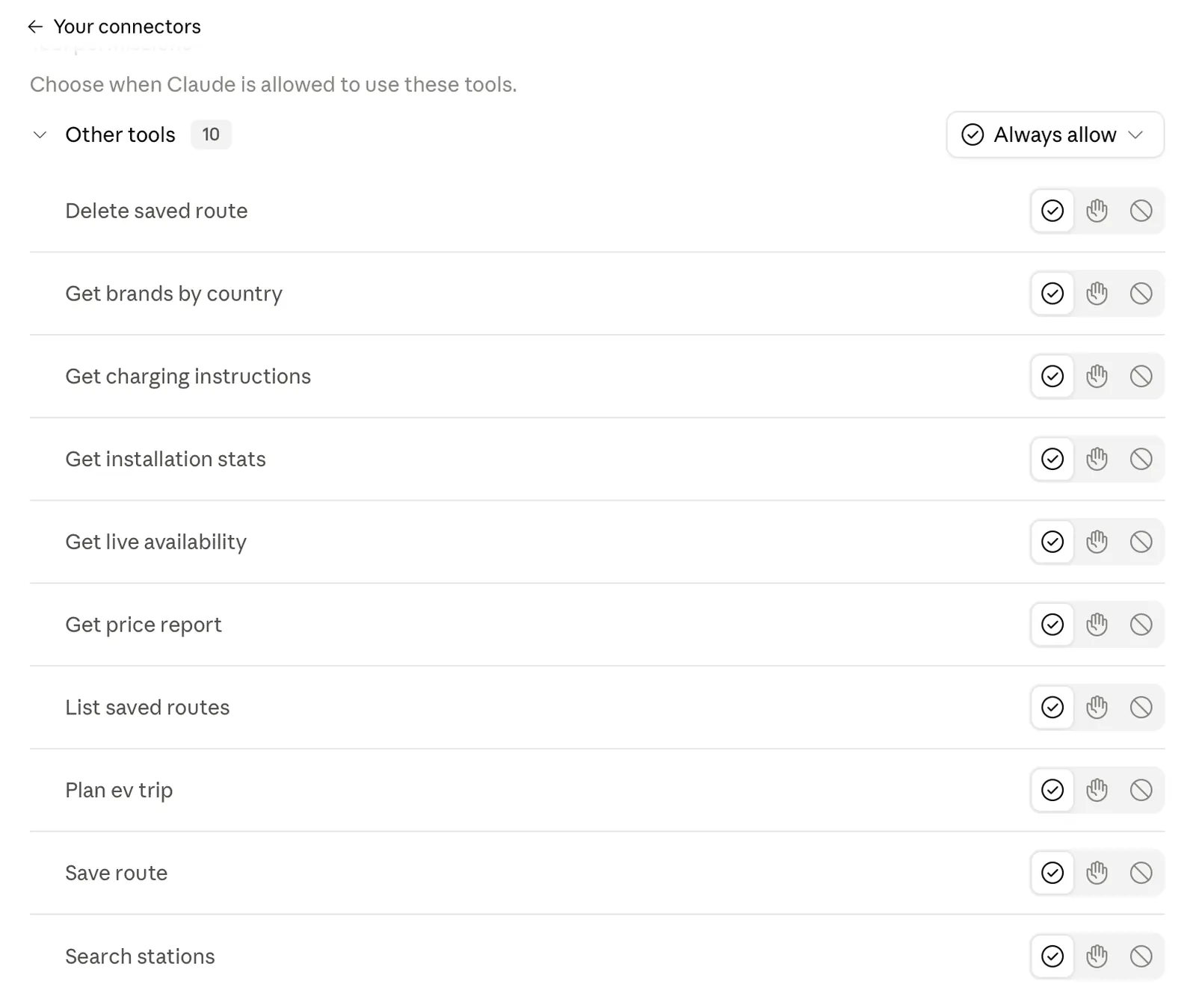
The permission screen in Claude -
Check it works
Ask: "What's the nearest charging station to me?" If the answer relies on real EV UA stations, it's connected.
Steps for grok.com and the Grok mobile app. The connector is tied to your account, so it works everywhere you use Grok, including in a Tesla.
-
Add the connector
Plugins, New connector, "+ Custom". On mobile: Settings, Grok, Connectors, Custom connectors, Custom connector, Connect. Enter the name and address below. Grok decides whether to call a connector mostly from its name, so use the long English name: then it connects on its own, even if your request doesn't mention EV UA.
Connector nameEV UA - EV charging station search, route planning and charging network data for Ukraine and EuropeMCP server addresshttps://evua.site/mcp -
Sign in to EV UA
Grok opens a sign-in page with a QR code, with no password. Scan it with the camera of a phone that already has EV UA (or in the app: Settings, "Connect a new device"). If you're connecting from that phone, tap "Open EV UA" instead of scanning.
-
Check it works
Ask: "What's the nearest charging station to me in EV UA?" If Grok answers from general knowledge, add "in EV UA" or "using EV UA" to the request.
Every MCP-capable agent adds connectors its own way, so check its settings or documentation.
-
Add the connector
In the agent's settings find Connectors, Plugins or Integrations and add a custom MCP connector. Enter the name and address below.
Connector nameEV UAMCP server addresshttps://evua.site/mcp -
Sign in to EV UA
The agent opens a sign-in page with a QR code, with no password. Scan it with the camera of a phone that already has EV UA (or in the app: Settings, "Connect a new device").
-
Allow the tools
The agent shows the EV UA tools. Confirm so it can use them.
-
Check it works
Ask: "What's the nearest charging station to me in EV UA?" If the answer relies on real stations, it's connected.
Claude on the CarPlay screen
AI assistants such as Claude and Grok are available in the car too. Through CarPlay or Android Auto you can use your voice to find stations, build routes and ask about prices and status, keeping your hands on the wheel.

What the assistant can do with EV UA
search_stationsFind stations by place, power, price, network and nearby venues.
plan_ev_tripA route with charging stops for your real range, across Ukraine and Europe.
get_live_availabilityCurrent connector state: free, charging or offline.
get_station_standby_historyA station's outage history for recent days.
get_price_reportA report on charging prices across networks.
get_installation_statsHow many stations were added or removed by network and month.
get_brands_by_countryWhich networks operate in a chosen country.
get_charging_instructionsHow to start charging on a specific network, including in Europe.
save_route, list_saved_routes, delete_saved_routeSave a route and find it later in the app, CarPlay and Android Auto.
Limits by plan
Tokens are spent on each request and reset daily.
| Plan | AI connections | Tokens per day |
|---|---|---|
| Free | 1 | 100 |
| PRO | 2 | 500 |
| MAX | 3 | 1 250 |
Frequently asked questions
Is it free?
Yes, an EV UA account is enough. There is a daily token limit, and it is higher on PRO and MAX.
Do I need a password?
No. You sign in with a QR code in the EV UA app, where you're already signed in.
Is there data for Europe?
Yes, on PRO and MAX: routes and station search in neighbouring countries and beyond.
How do I disconnect?
Remove the connector in your AI assistant's settings at any time.