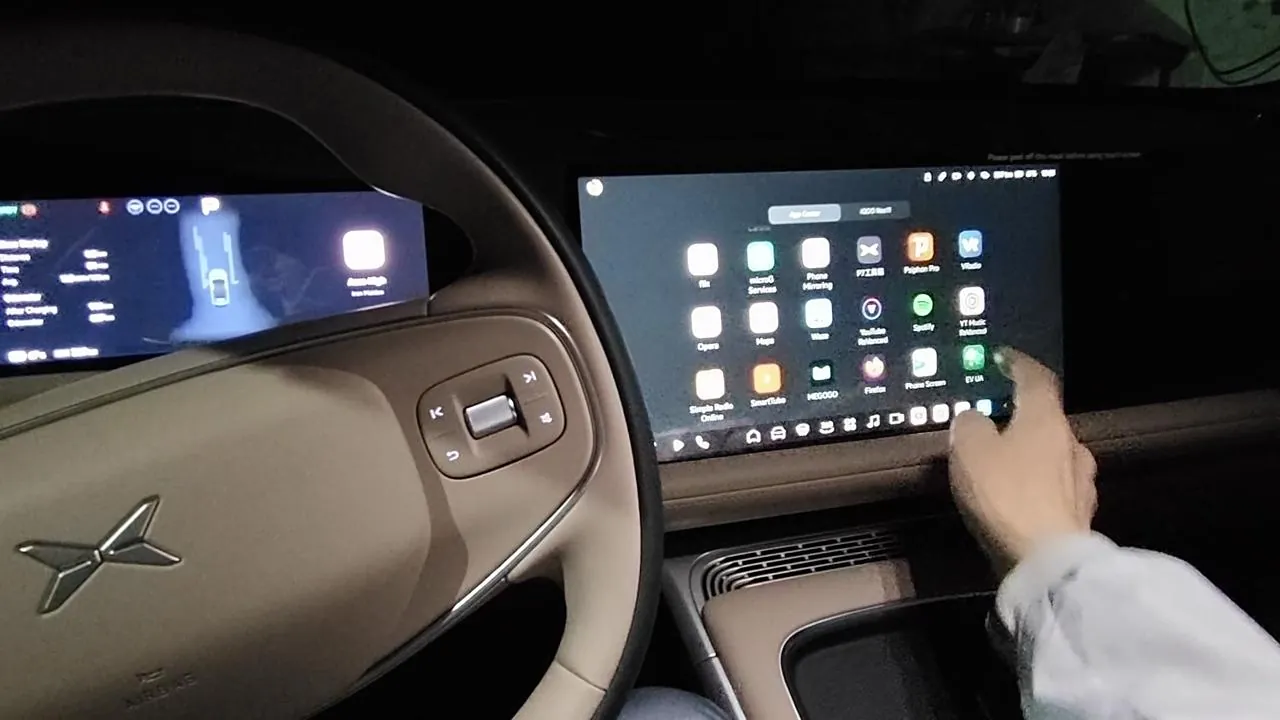
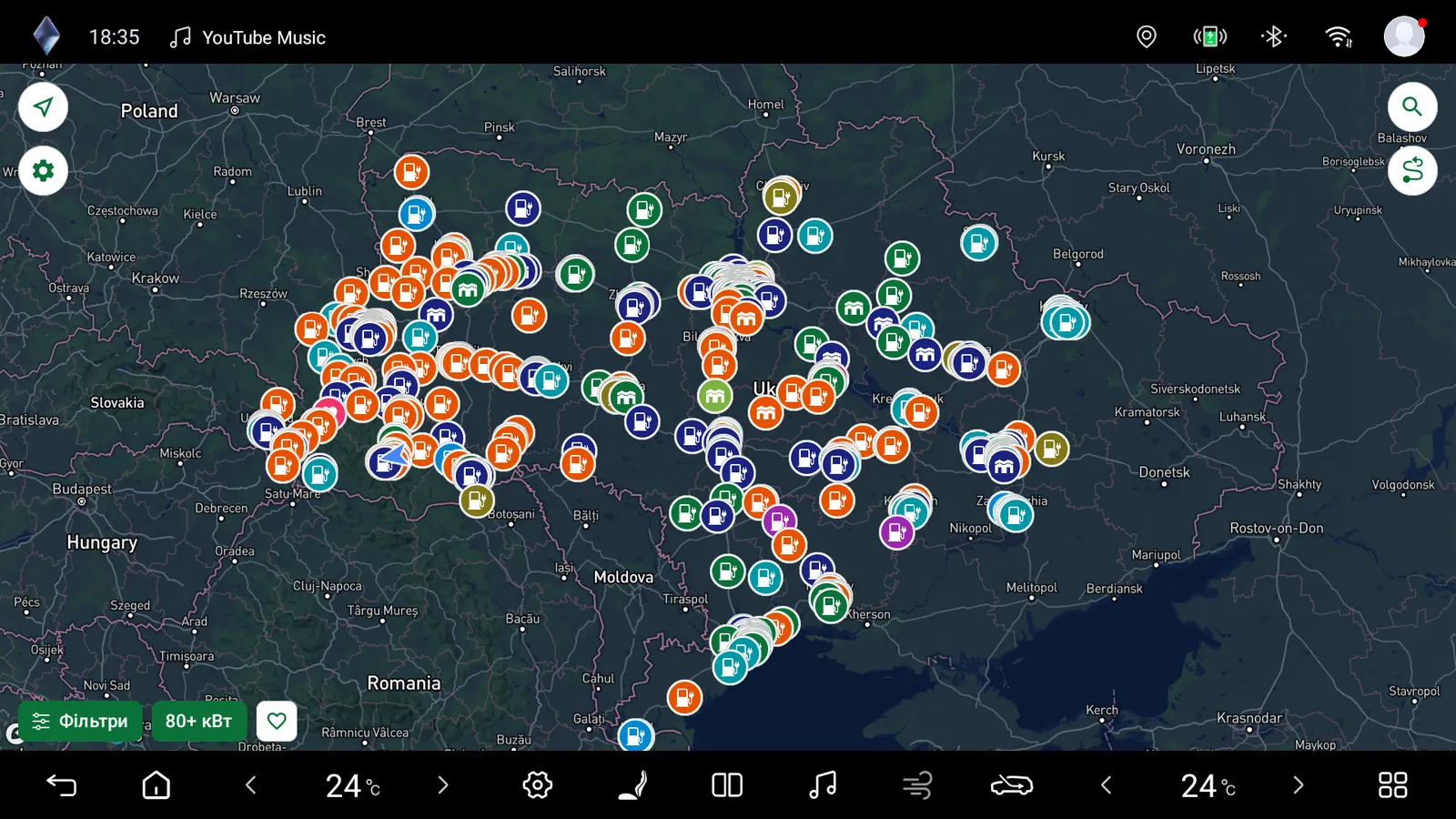
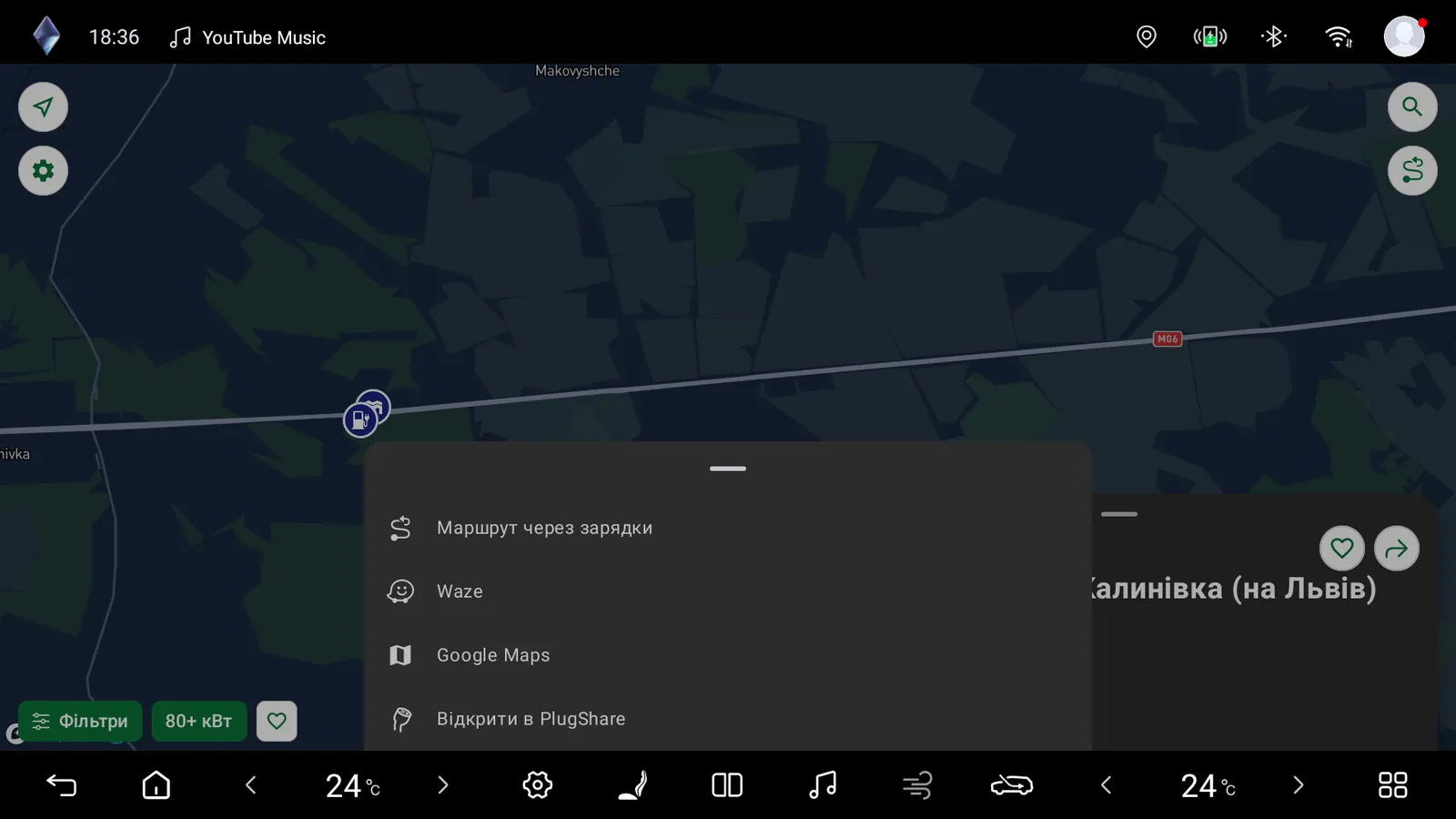
Chinese electric cars arriving in Ukraine often have an Android-based infotainment system but no Google Play and no Android Auto. So you can't install anything in a couple of taps as you would on a phone. For these cars we support installing EV UA from an APK file.
The app is optimised for the infotainment systems of Xiaomi (CarlinkKit), Xpeng, Zeekr, Avatr, BYD, Leopard and Denza. We tested on a Leopard, and we also show screens from Zeekr and BYD.
Three ways to install
Important: install the app only from the APK downloaded from the official EV UA site. Don't use Aurora Store or similar markets: they carry an old version of the app.
1. From the car's browser
Open the browser on the car's screen and go to the APK link on the EV UA download page. Download the file and open it.
2. Through Telegram in the car
If Telegram is already installed in the car, send the APK to yourself (or to Saved Messages) from your phone and open the file in Telegram. It's the most convenient option when the car's browser is awkward or limited.
3. At a service station
Don't want to fiddle with it yourself? Ask the EV Tune specialists, who work with these cars, to install the app. Their Telegram contact is @antonbovt.
How to install the app in your car
The method depends on the car. Here is what works in practice.
BYD, Leopard, Denza. The easiest case: install EV UA straight from the APK file using any of the ways above.
Zeekr, Lixiang. There are two routes. The first is to have the app installed at a service station, for example EV Tune (contact above). The second is to have the car unlocked at a service station so the system lets you install apps yourself. After that you can install the APK from Telegram, the browser or a file manager.
Avatr. The recommended way is to install Avatrash, which lets you install the Play Market version. More details in the Avatr UA community thread. There is also a workaround: buy a phone with the Chinese-market firmware, install EV UA on it from the APK, connect the phone to the car and use it as a bridge to get apps onto the car's screen.
Xpeng. Download the APK from the EV UA site and install it with adb. Step-by-step instructions are in the Xpeng UA group.
Xiaomi. You need to buy a wireless Carlinkit and install the app on it.
Another brand? Ask your car's community how to install apps from an *.apk. Most likely EV UA will install without problems. If it doesn't, write to the EV UA Telegram group (evuaapp): a little extra work may be needed to make the app run perfectly in your car.
Setting up after installation
- Allow installs from unknown sources when the system asks, and open the file.
- Launch EV UA and allow location access so you can see nearby stations.
- Sign in to your EV UA account: the easiest way is a QR code (details below).
Signing in with a QR code
The easiest way to sign in on the car is a QR code. It works even if your account was originally created with Google or Apple, and there's no password or Google service to rely on at the car's screen.
- On the car's screen in EV UA, choose to sign in with a QR code and a code appears.
- On your phone, where EV UA is already installed and signed in, open Settings and choose "Connect a new device".
- Point the phone's camera at the QR code on the car's screen. Or enter the code manually if the camera doesn't suit you.
That's it: the car is connected to your account without a password.
No Google Services needed
These cars usually have no Google Services, so we optimised EV UA to run without them. Maps are rendered with Mapbox, with full support for dark theme and satellite view. The experience looks and behaves the same as on a device with Google Services.
Updates
Updates arrive automatically, so there's no need to track new APKs by hand.
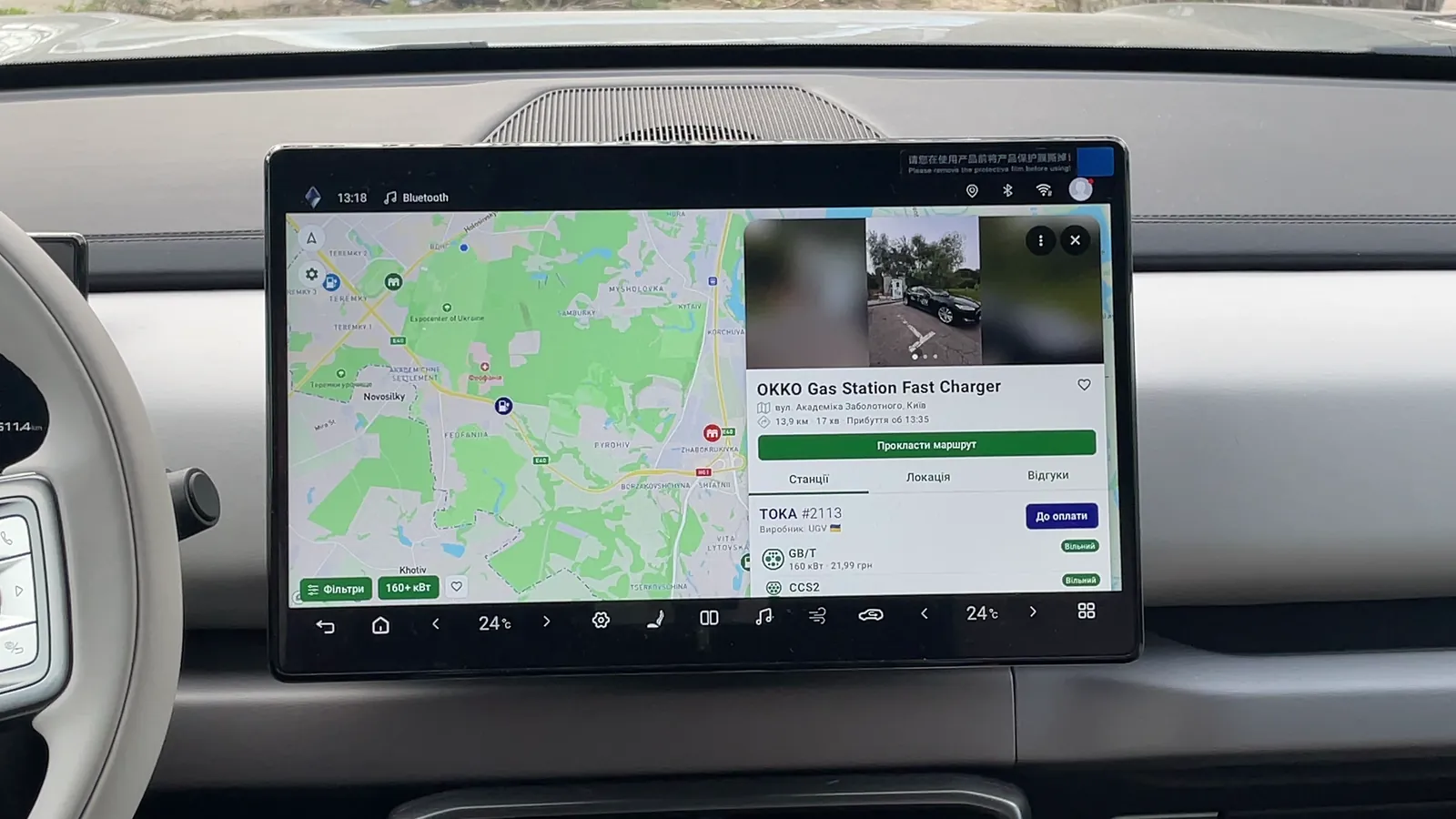
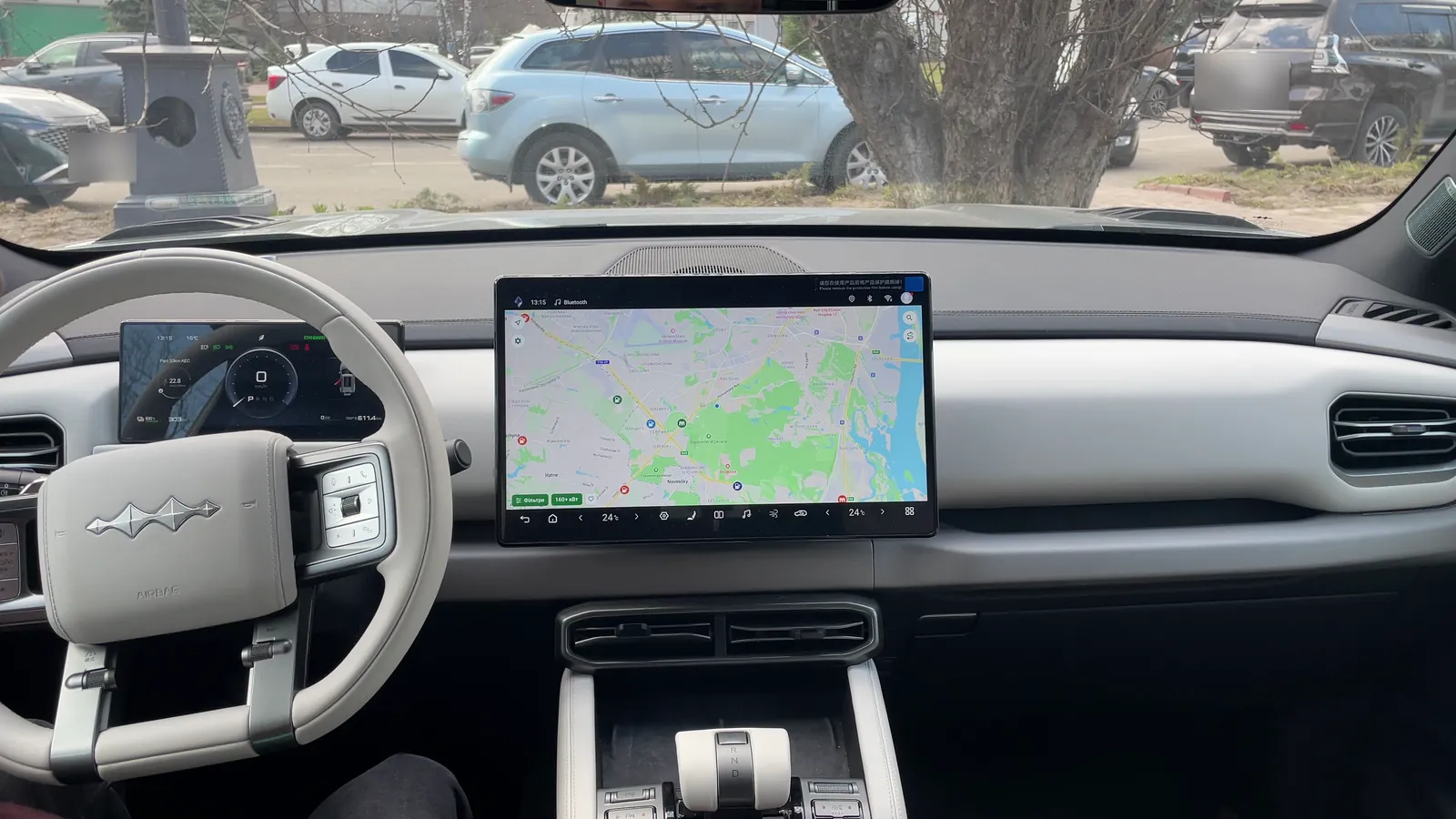
What it looks like on Chinese cars' screens
On the large Zeekr and BYD screens you get the same map, filters and station cards as on an Android tablet. The app adapts its interface density to the car's screen, which matters especially for Zeekr. It also works on screens without multitouch, such as Carlinkit units under Xiaomi.