

In winter an electric car arrives at a fast charger with a cold battery, and a cold battery means slow DC charging. Instead of 120–160 kW, a Tesla may draw only 15–30 kW until the battery warms up. So a charge that takes a few dozen minutes in summer drags on in frost, which makes preheating the battery before charging very important.
Winter adds power outages: a station can be without electricity just when you reach it. We explain how to find a station that's working in advance in the article How to charge an electric car during power outages.
A Tesla can warm its battery in advance when you drive to a charger using the car's navigation. For that, the car has to know that the destination is a charging station. EV UA helps with exactly this: it sends the station to the Tesla in a way the car recognises.
How it works
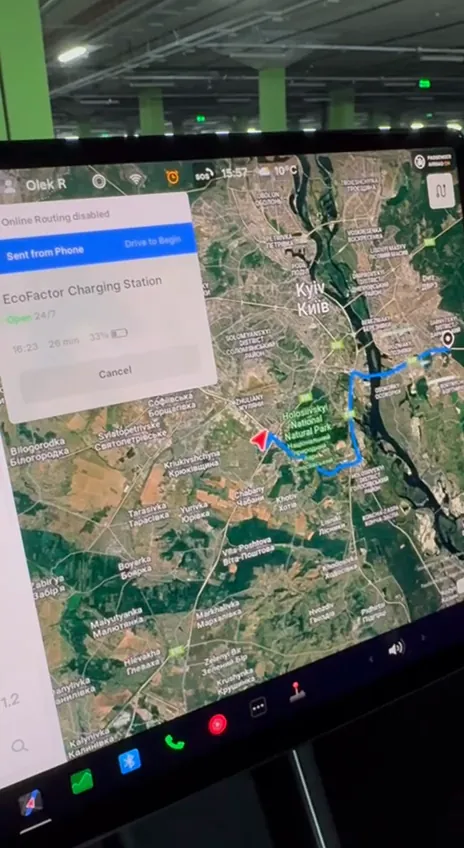
When you send a station from EV UA to a Tesla, the app passes the car not just coordinates but a link to that location in Google Maps. For stations that have this link, the car recognises the place as a charging station. On the Tesla's screen it appears with a name like "EcoFactor Charging Station". These are the locations EV UA marks as "Tesla battery preheating during navigation".
For stations without such a link, the app sends coordinates only. The car then drives to a point on the map but doesn't know there's a charger there.
The preheating itself is done by the car, so its behaviour depends on the Tesla's model and settings.
How to see that a location has preheating
Open a station card. If at least one station at the location has a Google Maps link, the description shows the line "⚡️ Tesla battery preheating during navigation". It's on both the short and the full card.
You see this line only when the Tesla app is installed on your phone.
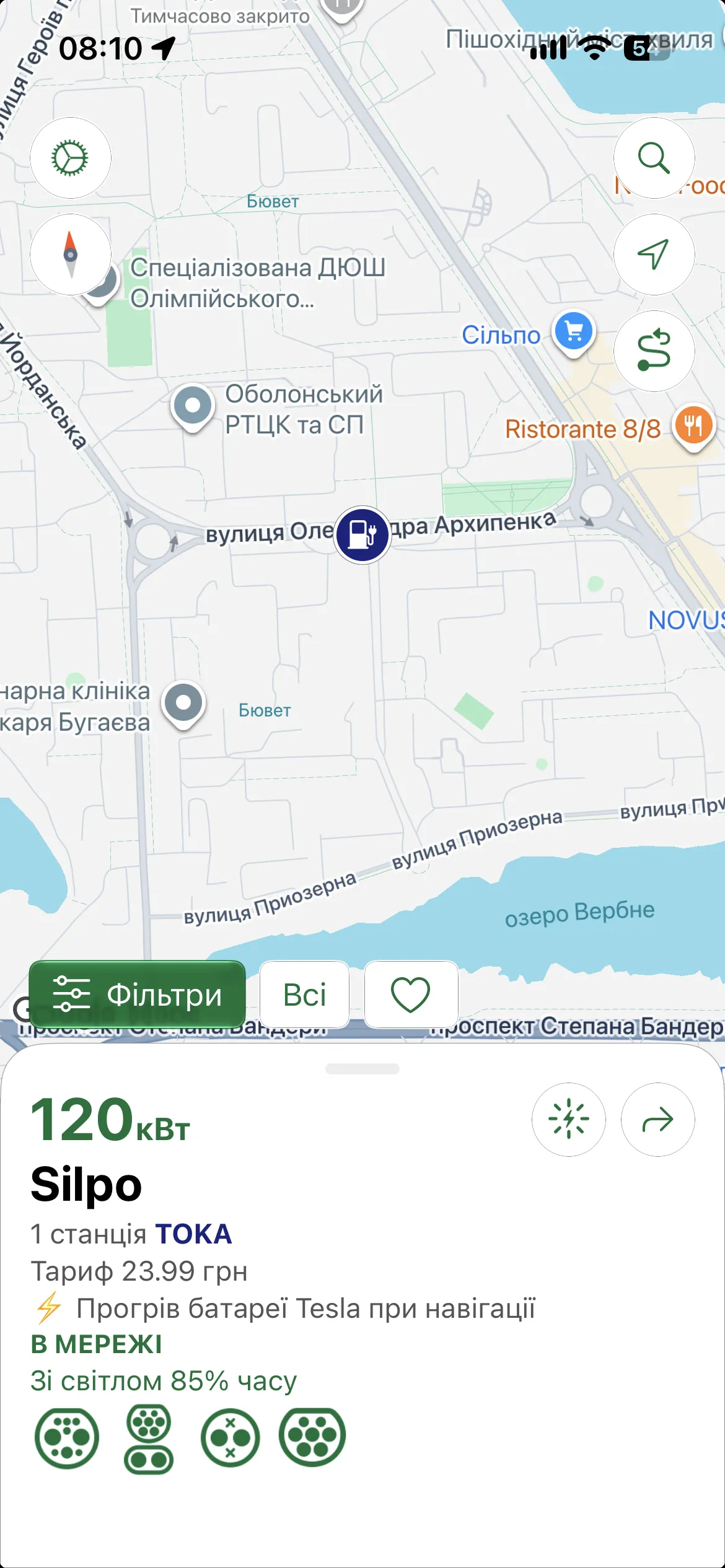
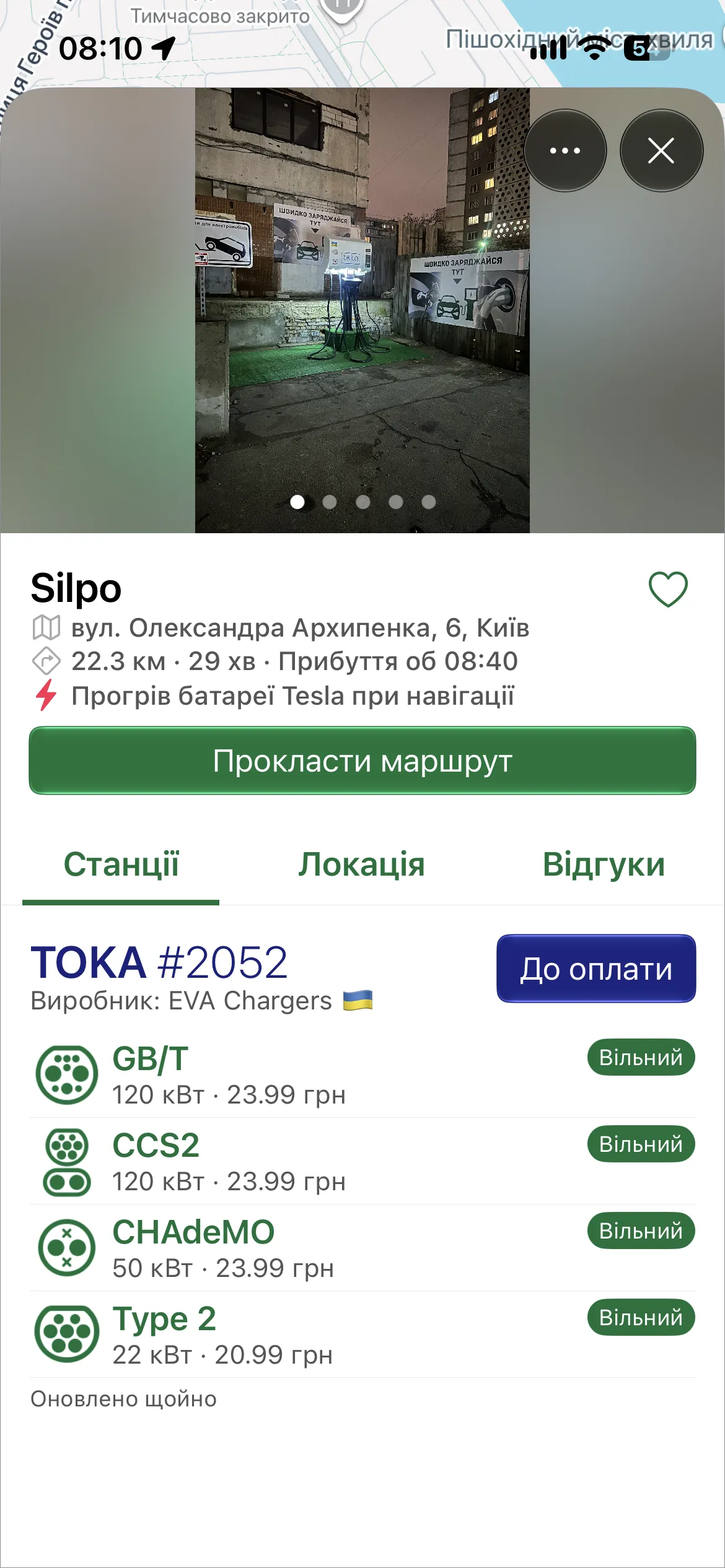
The "Only stations with preheating" filter
To see only such locations on the map, open the filters and find the "Tesla battery preheating" section. Turn on "Only stations with preheating". The map keeps the stations for which the car recognises the place as a charger.
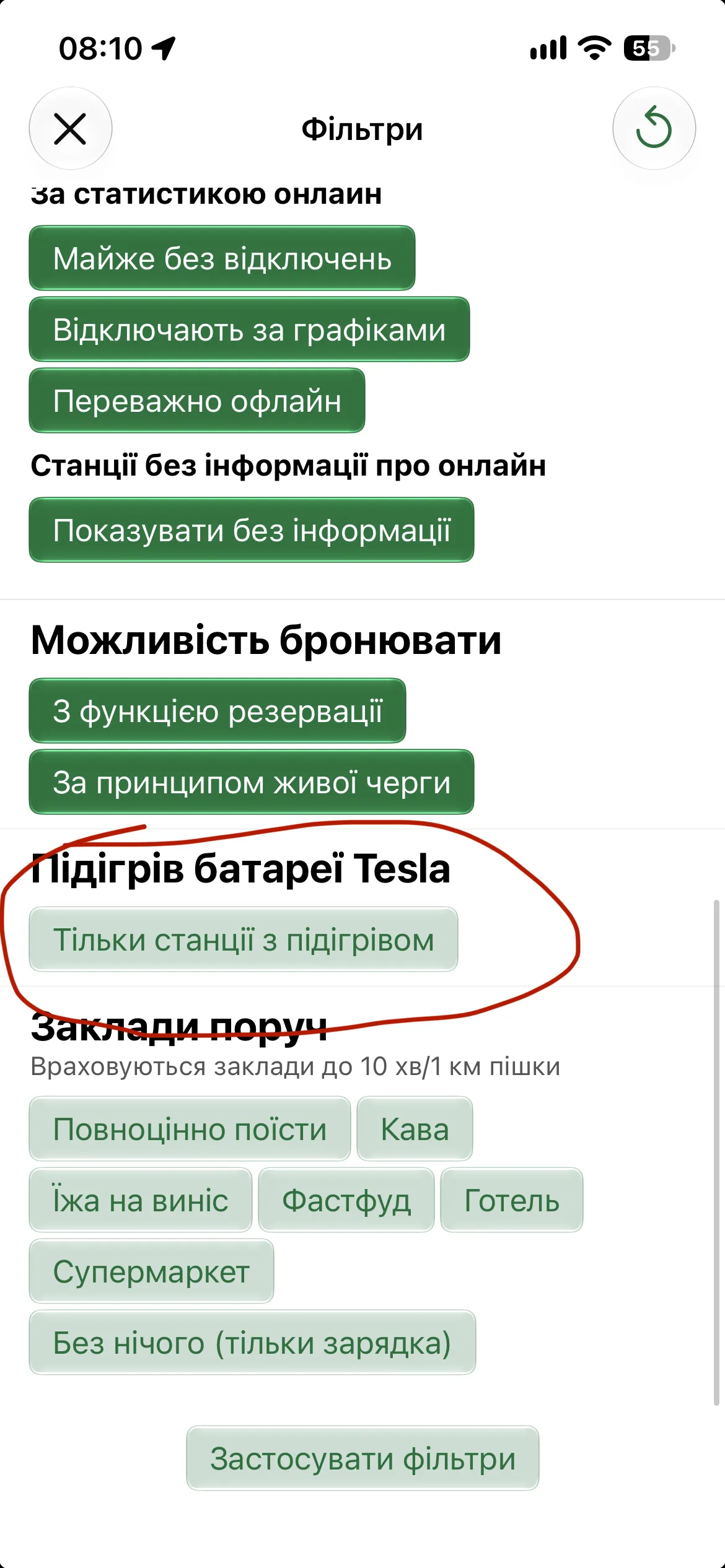
This section also appears only when the Tesla app is installed on the phone. In the mobile app the route planner also takes this filter into account.
How to send a station to the Tesla
- Open the station on the map and choose it in the navigation menu.
- Tap "Send to Tesla". This item exists only when the Tesla app is installed on the phone.
- iPhone: the system Share menu opens. Choose the Tesla app in it. EV UA doesn't accept other apps and asks you to pick Tesla.
- Android: the station opens straight in the Tesla app. For this to work correctly, the phone's system language must be English.
- Wait for the "Sent" message.
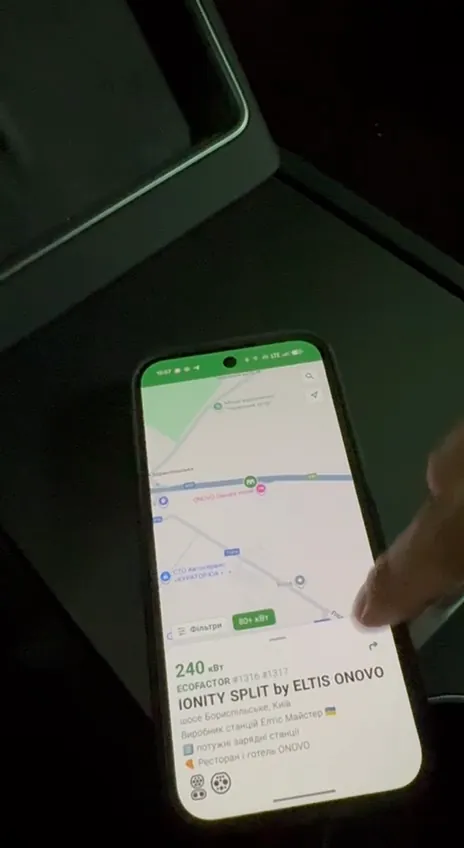
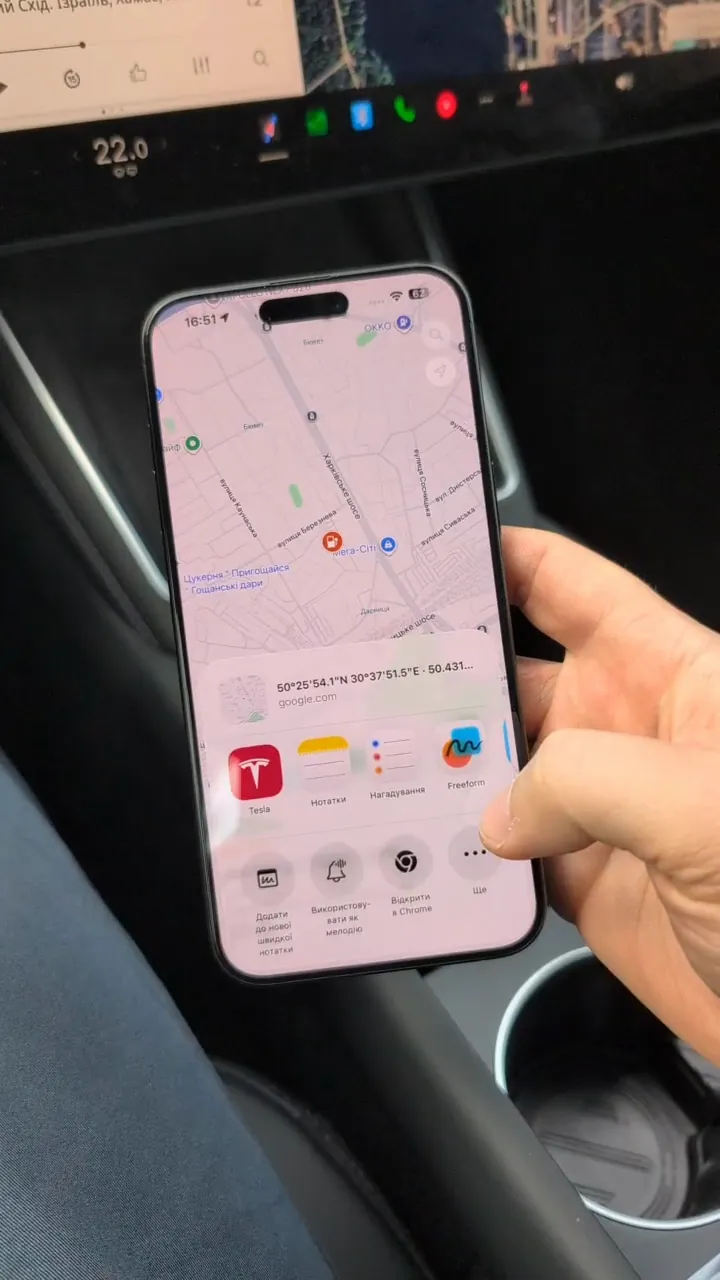
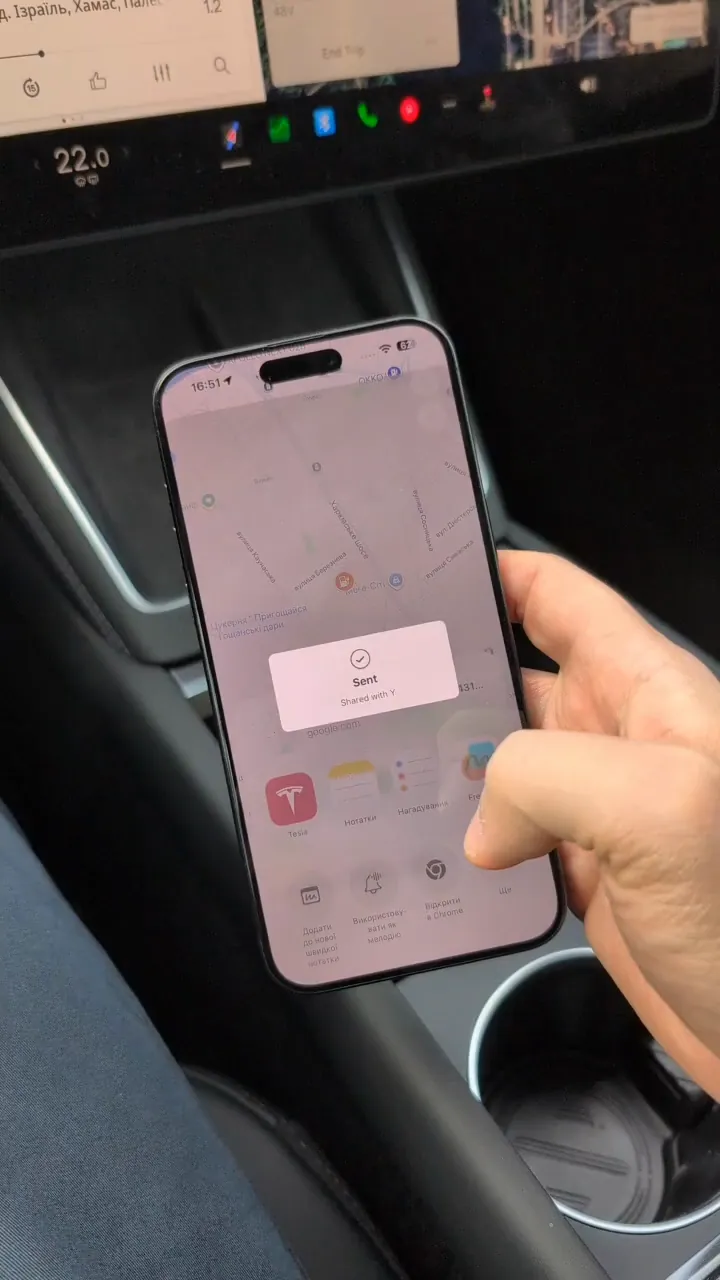
A moment later the station appears on the car's screen with a "Drive to Begin" button and a route. All that's left is to drive.
A quick checklist
- Install the Tesla app and sign in to your car's account.
- In the EV UA filters, turn on "Only stations with preheating" to pick a location with preheating.
- Open the station and send it to the Tesla through the navigation menu.
- Follow the route: the car prepares the battery for charging.


